In this step you fine-tune the implementation of the drag and drop functionality by playing an animation that wiggles the button when the user drags it.
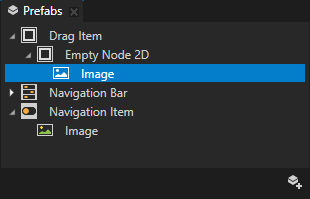
To animate the button that the user drags:
- In Kanzi Studio in the Prefabs > Drag Item prefab select the Image node, in the Node Components > Animation section click + Add Animation, and select Animation Player.
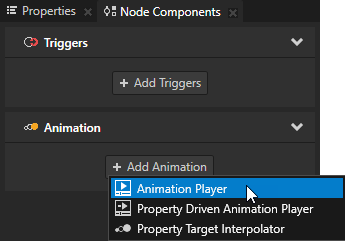
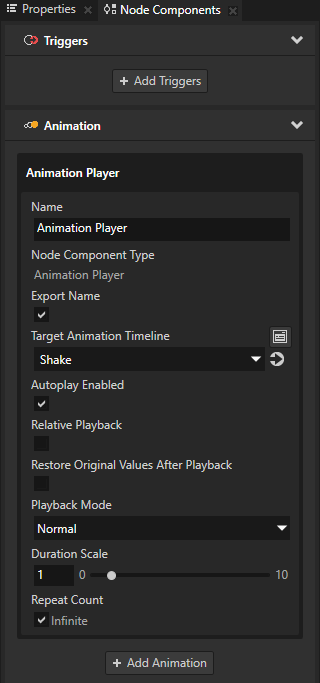
- In the Animation Player set:
- Target Animation Timeline to Shake
- Autoplay Enabled to enabled
Autoplay Enabled sets whether the animation starts immediately after Kanzi attaches the node with the Animation Player to the scene graph. - Repeat Count Infinite to enabled
In the Repeat Count property when you enable the Infinite property, the Animation Player plays the animation infinite amount of times.
- In the Properties add the Render Transformation Origin property and set the X and Y property fields to 0,5.
This way you set the animation to move the node from the center point of the node, instead of its top-left corner.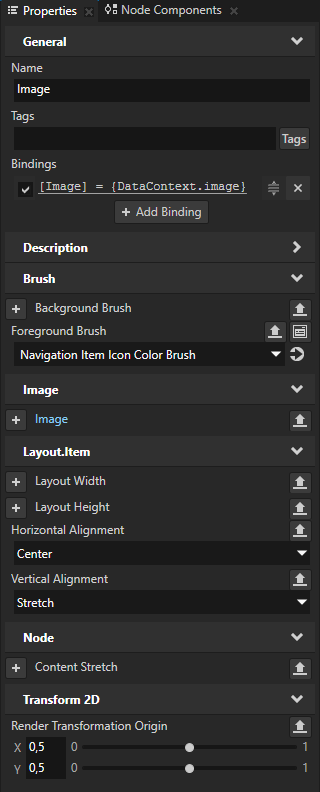
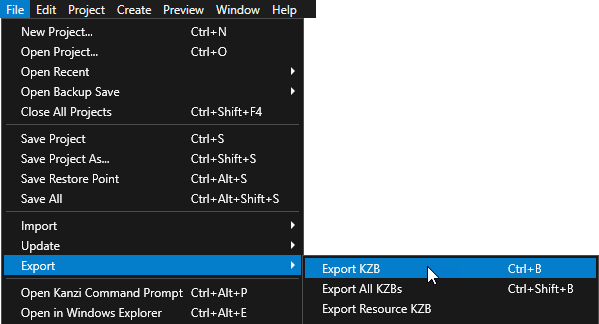
- Select > Export > Export KZB.
-
In Visual Studio run your application.
When you drag a button, it wiggles.
< PREVIOUS STEP
What's next?
In this tutorial you learned how to use the drag-and-drop manipulator to reorder the buttons in a navigation bar. Now you can:
- Learn how to use the Kanzi input manipulators to enable panning, zooming, rotating, resetting the position, and dropping a pin on a map. See Tutorial: Pan, zoom, tap.
- Learn how to use Kanzi Data Sources to separate the user interface from the application data. See Tutorial: Get application data from a data source.
- Learn how to use the Kanzi Engine API to access nodes and resources from the kzb file you created in Kanzi Studio, get and set the property values of Kanzi nodes, use custom property types, instantiate prefabs, load and play animations, load resources from the kzb file, use Kanzi messages to define events, and deploy the completed application to an Android device. See Tutorial: Kanzi Engine API advanced use.
- Learn how to create keyframe animations. See Tutorial: Create keyframe animations.
See also
To learn more about animations, see Animations.
To learn how to deploy your Kanzi application to different platforms, see Deploying Kanzi applications.
